Saturday, April 17, 2021

Upload Content Document with custom field populated from a Visualforce page

In a previous post, we looked at how to upload files as attachment without exceeding heap size governor limit. Link to post: https://blog.moothien.me/2017/05/upload-attachment-to-salesforce-without.html

However, most implementation nowadays make use of Content Document to store files since the Spring '16 rollout. 

Here I will show you how to upload file to Salesforce as Content Document attached to a record. At the same time, you will also be able to populate fields (standard and custom) on the Content Version record. 

First of all, let's take a look at the data model for Content Document. 
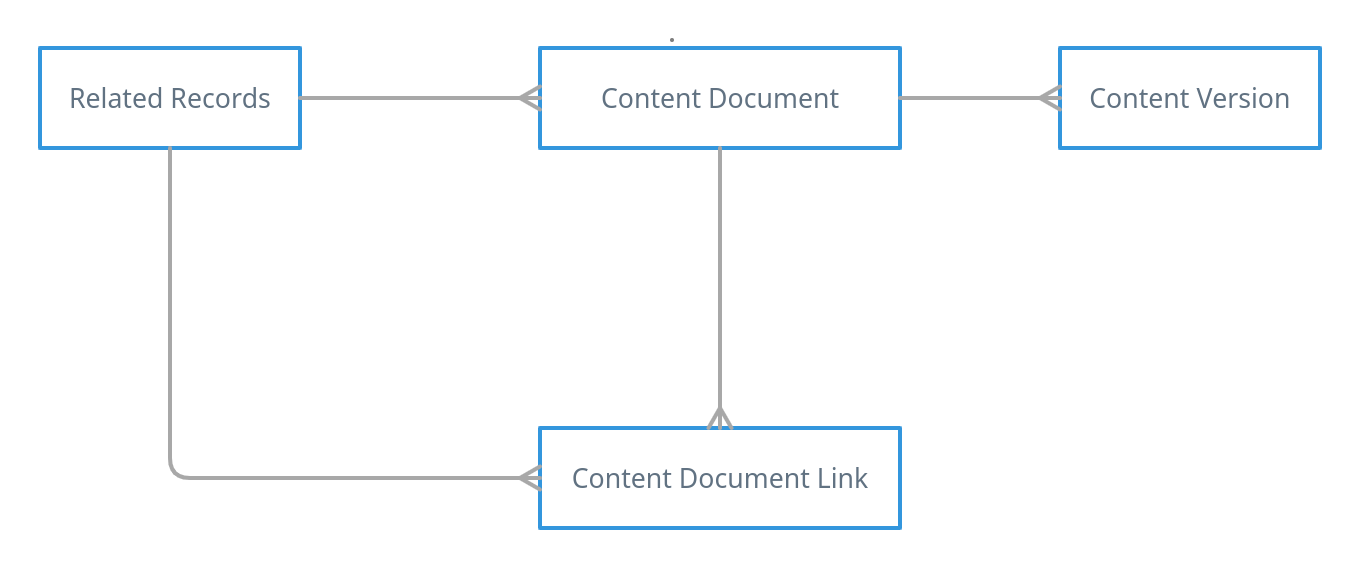

As you can see in the ERD above, the process of creating a Content Document is a bit different. The object Content Document cannot be created on its own, a Content Version needs to be uploaded first. This process will automatically create the Content Document. Now, to link the Content Document to the your record, a Content Document Link needs to be created which will store the relationship between your record and the uploaded file. 

This requires at least three APIs call to Upload: 

  1. upload a file will create a Content Version and will return the Id of the Content Version
  2. Use this Id to get the Content Document Id which has been auto created
  3. Use the Content Document Id and create a Content Document Link which relates to your record
Luckily for us, Salesforce has a special type of API request named Composite Resources which can execute Dependent Requests in a Single API Call. (Read more about Composite Resources here: https://developer.salesforce.com/docs/atlas.en-us.api_rest.meta/api_rest/using_composite_resources.htm)

Here is how the composite resource body is built and where to populate the custom field.


In the payload, you will notice a key referenceId. It will create a variable with this name and will be populated with the response of the current request, which can then be used to sub request.


Composite resource makes use of the following endpoint '/services/data/v51.0/composite'. A session Id is also required to authenticate the request. 

Here is the full code:


Demo

Upload a file with custom attributes


The result on Salesforce


Resources:


Saturday, March 27, 2021

Einstein Vision - Image Classification Open Source App

“According to Gartner, by 2020, 85% of customer interactions in the retail industry will be managed by AI."

Last year, I have written post about the OCR module of Einstein Vision, but did you know that other modules exist? Such as Image Classification and Object Detection

In this blog post, I will talk about Einstein Vision Image Classification module. But wait, what is image classification, How does it works, where can I use it and how to implement it? I shall try to answer each one of them.

What is Image Classification?

Image classification in computer vision refers to a process that can classify an image according to its visual content. In Einstein Vision, you will be the one who will feed the images and for each image, you will also provide a label. It will process the images and try to identify one type of object in each image and assign the label. 

How does it works?

For you to be able to use a Image Classification software (an AI is used), you will need a dataset. This is where you will gather several photos of an object and feed the software by telling it what is in the photo using a label. 

Once you have sufficient photos and labels in your dataset, you just have to train it (don't worry, the software will perform this for you). The output is called a model

It is against the model that prediction of an image is performed. 

Where can it be used?

An example would be at an automatic Grocery store where user displays the product in front of a camera at checkout. The camera takes a picture of the product and then using Image classification software, it looks up from its trained dataset (model) to predict the product shown and retrieved relevant information such as label and price. 

How to implement EV Image Classification?

To implement this module, you have several options: 

Einstein Vision App

I will showcase the last option, which is a desktop application that I have implemented from scratch from my experience with Einstein Vision Image Classification. 

Hang tight, thing are getting technical here.

First of all, it is an hybrid application developed on the Nodejs and Electron framework. Meaning, it will work on Linux, Windows and Mac.


I haven't published an executable version of the Application yet. So, you will have to build it by yourself. But don't worry, it isn't difficult at all (Instruction can also be found in the README.md file on the Github repository). 

Here are what you need to get started (and as a developer, I believe you have all of them): 
  • git
  • nodejs

Simply clone the repositoy locally using the following command line: 
git clone https://github.com/kevanmoothien/einstein-app.git
Open your favorite terminal inside the einstein-app directory.

Install dependencies with npm:
npm install
Last, start the application:
npm start
Once the application starts, you will need to insert your Einstein Vision credentials. It is composed of an email address and a einstein_platform.pem file. Insert the email address and open the einstein_platform.pem file using your favorite text editor. Copy the content and paste it in the Einstein App. Sign up here if not already done: https://api.einstein.ai/signup

Configure einstein api
Einstein Credential configuration

You can now start creating projects for  classifying images. 

Let's create a new project name boardgame


Add a label and start uploading images for this label. 

Uploading images for label monopoly


Once you have uploaded images for several labels (minimum 2 labels are required). You can Create a Dataset. When the dataset is created, it will upload all the images. You will see a green icon on each image which has been processed. There is also a progress bar. 

Example Create Dataset


When upload has been completed. Click on View Dataset for this project. It will show you the status of the dataset which has been uploaded. From there, you will have a button Train Dataset. Clicking on it will create a model. Then click on View Model 

Dataset status and Training


You will see Einstein Model progression. Once succeeded, you can proceed and test your model. Upload an image you want to predict, it will output the probabilities. In the example below, I have tested it against a monopoly image.

Playground prediction


Demo


Resources:


Thursday, October 29, 2020

Getting Started with Salesforce Einstein Vision OCR (tabular model) - Part 2

In the previous Einstein Vision OCR blog post, we took a look at setting up Einstein Vision and viewed a sample usage with Business card. Click here if you missed it. 

In this post, we shall see the other version of the OCR which is reading tabular format image. E.g Balance sheet, excel screen capture, inventory list, etc...

Official Einstein Vision Tabular documentation here: https://metamind.readme.io/docs/detect-text-and-tables

I have created a sample code which will call the tabular model and from the predicted result, I built a html table which is being displayed right away in your Salesforce.

Demo screenshot


Here is a demo video:


Technical details about the prediction result: 

  • the recognized label will contain a cellLocation with rowIndex and colIndex. 
  • use the rowIndex and colIndex to map it on a two dimensional array 
  • then build the html table with tr and td
    • tr - for each row
    • td - for each column

Here are some use cases where it can be useful:
  • You need to digitalize all paper work tabular transaction, just scan it and let Einstein do the rest.
  • scan you sheets and display form for a data entry to validate and correct where necessary. This will save time during data entry


In the next post, we shall talk about the Einstein Vision Retail Execution API. Stay tuned.

Cheers..


Thursday, August 13, 2020

Passing parameters to Custom Label in Apex

Custom labels enable developers to create multilingual applications by automatically presenting information (for example, help text or error messages) in a user’s native language. Custom labels are custom text values that can be accessed from Apex classes, Visualforce pages, or Lightning components. The values can be translated into any language Salesforce supports. (more here: https://help.salesforce.com/articleView?id=cl_about.htm&type=5)

But what if we want to be able to add dynamic Custom Label in APEX? Instead of concatenating several labels and dynamic variables, this can be achieved using a single Custom Label.

Example: Account Spoon Consulting Ltd has 130 contacts and 300 opportunities.

In the above label, the account name, contact amount and opportunity amount are dynamic values which have been fetched from the Account record. 

Here is how the label will look after adding the merge parameters: 
Account {0} has {1} contacts and {2} opportunities.

Syntax to reference a Custom Label in Apex: 
System.Label.AccountSummary

Below is how we replace the merge fields in the custom labels:
String.format(System.Label.AccountSummary, 
   new List<Object>{ 'Spoon Consulting Ltd', 130, 300 });
Output: 

Using the above method, you can easily add translation to the label and fully customizable in any language without the need to modify the code. 

Hope this article was useful to you. 

Cheers :)

Thursday, July 30, 2020

Getting Started with Salesforce Einstein Vision OCR - Part 1

What is Einstein OCR?

We all know that OCR is an Optical Character Recognition which can detect and extract text from images. But, what about Einstein OCR?

Einstein OCR provides models that can detect text in an image such as Business cards, Images that contain unformatted data and images that contain data in tables.

In this blog post, we will focus on the Business Card Model. When choosing business card model, Einstein OCR can detect the entity type text such as Person, Organization, Email, Phone, Address, etc...

Sign Up

To get Started with Einstein Vision, you first need to register for an Account (If you don't already have one). 
Go to: https://api.einstein.ai/signup and Click on Sign Up using Salesforce.


Sign Up Einstein Vision
Sign Up


It is quite straight forward after that. If all goes well, you should see a screen with your Einstein Private Key like below. Download the key and keep it safe for later.

Private key
Private Key

Setup

Deploy Salesforce code

Once you have an Einstein Account, we can start the setup. For the next step, you will require some basic developer skills. 

Download this SFDX project from my public github repository: https://github.com/kevanmoothien/einsteinvisionocr

Connect the project to your Organization using SFDX: Authorize an Org option and then deploy all the elements inside the project structure.

Configure Permission for Salesforce App

When everything has been deployed, you can assign the App Einstein OCR to the desired Profile. 

profile assignment
Profile Assignment


Setup Einstein Vision

Configuring Einstein Vision is pretty straight forward, just switch to the Einstein OCR app on your Salesforce and open the Einstein Vision Setup tab

Enter the email address you used to Sign Up (make sure it is the email and not the Salesforce Username; you should find it in the welcome Einstein Mail).
Then use the Upload Files button to upload the private key (einstein_platform.pem file that you downloaded previously)

When saving the setting, you should have a green tick icon on the right hand side of the component to validate that the Account is valid.

Setup Einstein Vision


OCR in Action

To see the OCR in action, simply click on the Einstein OCR tab next to the Einstein Vision Setup tab.

Insert a Business Card Image Url and click on Scan.

Demo

The page comprises of 3 simple component: 
  • Component to input the Image Url
  • Another one for Preview the Business Card
  • lastly, result previewer
From the above example, you can see Mark Benioff business card. It has already categorised the different elements found on the Business  Card.

Wrap-Up

If you want to dive into more details on how the API call is done and detection result is processed, you can just take a look at the class EinsteinVisionUtils and Prediction class in the source code. 

Friday, April 24, 2020

Dynamically access any variable in an instance class

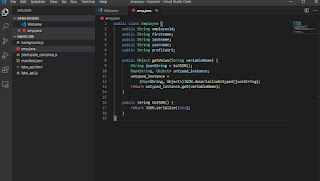
In this blog post, I will show you how to access any variable on an instance of an Apex class dynamically.

This is something useful when you want to make dynamic feature which are based on setting, especialy when doing ISV stuffs.

The code is as simple as below:

public class Employee {
    public String employeeId;
    public String firstname;
    public String lastname;
    public String username;
    public String profileUrl;

    public Object getValue(String variableName) {
        String jsonString = toJSON();
        Map<String, Object> untyped_instance;
        untyped_instance = 
            (Map<String, Object>)JSON.deserializeUntyped(jsonString);
        return untyped_instance.get(variableName);
    }
    
    public string toJSON() {
        return JSON.serialize(this);
    }
}

Example:

Employee emp = new Employee();
emp.employeeId = 'test';
emp.firstname = 'kevan';
emp.lastname = 'moothien';
emp.username = 'kevanmoothien';
emp.profileUrl = 'https://picsum.photos/200/300';

system.debug(emp.getValue('firstname')); // returns kevan
system.debug(emp.getValue('lastname')); // returns moothien

Here is a use case where this kind of integration can be used based on the above code.
Suppose you have to develop a custom related list lightning component which would be used on several layout. But on each layout, it has to display different columns.

To achieve this, we would think of different component and hardcoded variable. But, this can be done by simply having a Custom Metadata type to save the setting of each layout and the related list custom component can simply display the columns value dynamically using the above code based on the setting provided in the Lighting app builder.

Hope this is useful to you trailblazers.

Cheers :)

Sunday, April 5, 2020

How can we efficiently generate a List of Id from a List of SObject structure with just one line of code?


Do you know how to get a list<Id> from a list<SObject>? Yes, doing a loop of the list of SObject and then put each record Id into another list or set. 

What if this was possible in just one line of code?

Infact, it is possible to write this in just one line of code. Don't believe me? Take a look below. 

Let say we have a list of contact records from which we only want to extract the list of record Ids.

Cheers

Saturday, March 9, 2019

Converting a DateTime field into a Unix Timestamp with formula field

In this episode, we will show you have you can easily convert a date time field value to an Epoch/Unix Timestamp using Salesforce formula field.

First, you need a field of type DateTime such as CreatedDate, LastModifiedDate or any Custom Field.

In our example, we will use the CreatedDate Field. The formula is as below.

(CreatedDate - DATETIMEVALUE( "1970-01-01 00:00:00" )) * 86400


This can be used to append to a image url to prevent image cache from browser.

Monday, December 3, 2018

Mock HTTP callouts in a Managed Package


In this blog, I will show you how to mock callout response which is in a managed package.


I found out that many developers are using Test.IsRunningTest() in their Apex classes to avoid writing Mock responses for http callouts and if the callout comes from a Managed Package, they are stuck with this message "Methods defined as TestMethod do not support Web service callouts".

As per Salesforce Documentation, "To mock a callout if the code that performs the callout is in a managed package, call Test.setMock from a test method in the same package with the same namespace."

So to be able to mock callout which is performed in a managed package, the line doing "Test.setMock" should be called from the managed package itself.

So what we did in the SharinPix (ISV) managed package, we added a global class which take a HttpCalloutMock class as parameter and execute the Test.setMock from within the package.

@isTest
global class HttpCalloutSimulator {
    global static void setMock(HttpCalloutMock mock) {
        Test.setMock(HttpCalloutMock.class, mock);
    }
}

By adding the above class in your package and making it global so that it ca be called outside the managed package make it easy to mock code which are doing callout in your package without getting error messages.

You will just need to call it as below:

[namespace].HttpCalloutSimulator.setMock(mock);

Example on how to use it:

sharinpix.HttpCalloutSimulator.setMock(HttpCalloutMock mock);  
//where the variable mock is the instance of your HttpCalloutMock class

Links: 

Saturday, December 1, 2018

What is Remote Action in Salesforce?

In this blog, we will learn how to use Remote Actions in Visualforce Page.

But what is a Remote Action? 


Remote Action is a way to access Apex method using Javascript in your Visualforce page.
It allows you to create pages with complex, dynamic behavior that isn’t possible with the standard Visualforce AJAX components.

Remote action method should always have the @RemoteAction annotation and it should be Static.

Let's take an example where we need to retrieve the first five Cases with Status to New.


Output:

Point to remember:

  • @RemoteAction annotation is mandatory
  • Remote Action methods should always be static
  • If you are using the Visualforce Page inline in a Page Layout, then the method should be declared as global instead of public

Saturday, August 11, 2018

Rendering Visualforce as PDF with Header and Footer

In my last post, I explain about how to customize the page size format of a generated pdf through Visualforce page.

In this new post, I shall illustrate how to add a header and footer to a generated pdf through CSS.

We get started by using the Visualforce template below:


Now, let's add the code for the header and footer and see the output.


Output of the header and footer in pdf

Friday, February 16, 2018

Visualforce renderAs pdf in different page format


Over the years, I found that there are so many people struggling with rendering pdf using visualforce, specially when they are required to set a custom page size, page break, margin, adding custom styling.

Today I shall give an example on how to print a contact address on an envelope using a pdf generated from a pdf upon the click of a button from the page layout.

First of all, to be able to generate a pdf from a Visualforce page, you need to use the renderAs attribute on the apex:page tag. See code below:


The above code will generate a pdf but you will notice that the page size will be in an A4 or letter document format. We want to achieve an envelope page size as mentioned early. This can be easily be achieved using some css in the code.

The following attribute are required on the apex:page tag: applyHtmlTag="false" and showHeader="false". To specify a size for the rendered pdf, the following style need to be added to the page:

<style>
@page {
    size: 6.4in 4.5in;
}
</style>

The size is customizable depending on the desired print layout:
  • size: A4;
  • size: A5 landscape;
  • size: 9in 5in;
When the @page is not specified, a full document format pdf is created. 
When no size specified (default to A4)

Now with a size specified.
Envelope size (6.4in x 4.5in)
Here is the full code for the above output.


Additional and helpful resources:

Enjoy ;)