Showing posts with label visualforce. Show all posts

Saturday, April 17, 2021

Upload Content Document with custom field populated from a Visualforce page

In a previous post, we looked at how to upload files as attachment without exceeding heap size governor limit. Link to post: https://blog.moothien.me/2017/05/upload-attachment-to-salesforce-without.html

However, most implementation nowadays make use of Content Document to store files since the Spring '16 rollout. 

Here I will show you how to upload file to Salesforce as Content Document attached to a record. At the same time, you will also be able to populate fields (standard and custom) on the Content Version record. 

First of all, let's take a look at the data model for Content Document. 
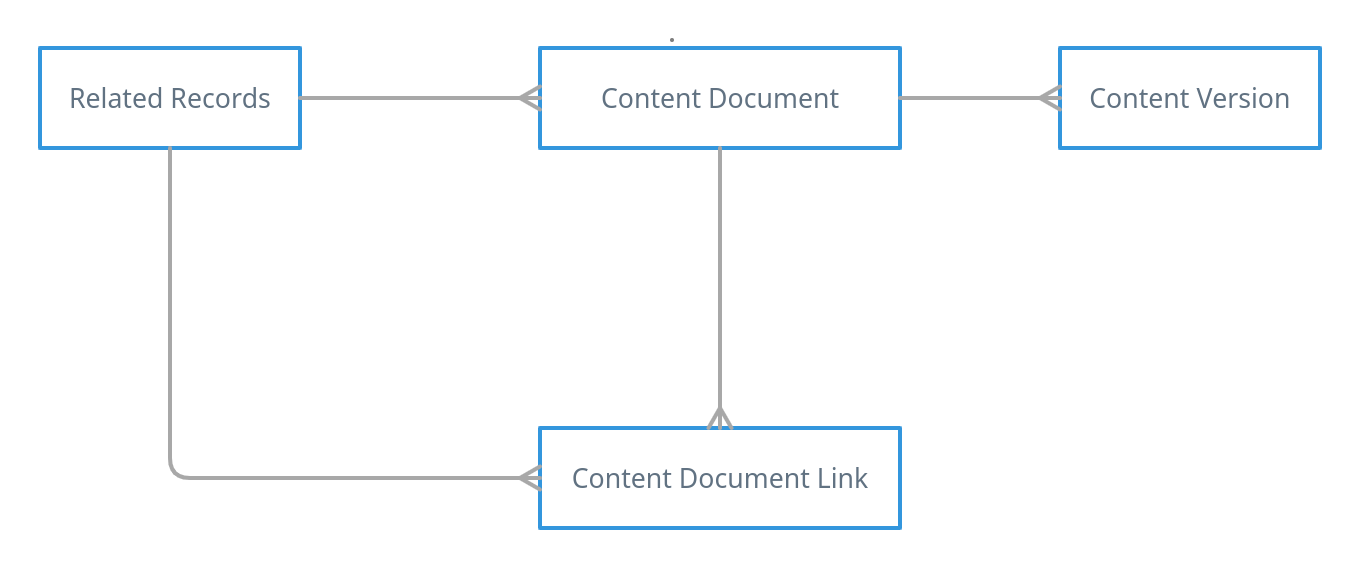

As you can see in the ERD above, the process of creating a Content Document is a bit different. The object Content Document cannot be created on its own, a Content Version needs to be uploaded first. This process will automatically create the Content Document. Now, to link the Content Document to the your record, a Content Document Link needs to be created which will store the relationship between your record and the uploaded file. 

This requires at least three APIs call to Upload: 

  1. upload a file will create a Content Version and will return the Id of the Content Version
  2. Use this Id to get the Content Document Id which has been auto created
  3. Use the Content Document Id and create a Content Document Link which relates to your record
Luckily for us, Salesforce has a special type of API request named Composite Resources which can execute Dependent Requests in a Single API Call. (Read more about Composite Resources here: https://developer.salesforce.com/docs/atlas.en-us.api_rest.meta/api_rest/using_composite_resources.htm)

Here is how the composite resource body is built and where to populate the custom field.


In the payload, you will notice a key referenceId. It will create a variable with this name and will be populated with the response of the current request, which can then be used to sub request.


Composite resource makes use of the following endpoint '/services/data/v51.0/composite'. A session Id is also required to authenticate the request. 

Here is the full code:


Demo

Upload a file with custom attributes


The result on Salesforce


Resources:


Saturday, December 1, 2018

What is Remote Action in Salesforce?

In this blog, we will learn how to use Remote Actions in Visualforce Page.

But what is a Remote Action? 


Remote Action is a way to access Apex method using Javascript in your Visualforce page.
It allows you to create pages with complex, dynamic behavior that isn’t possible with the standard Visualforce AJAX components.

Remote action method should always have the @RemoteAction annotation and it should be Static.

Let's take an example where we need to retrieve the first five Cases with Status to New.


Output:

Point to remember:

  • @RemoteAction annotation is mandatory
  • Remote Action methods should always be static
  • If you are using the Visualforce Page inline in a Page Layout, then the method should be declared as global instead of public

Friday, February 16, 2018

Visualforce renderAs pdf in different page format


Over the years, I found that there are so many people struggling with rendering pdf using visualforce, specially when they are required to set a custom page size, page break, margin, adding custom styling.

Today I shall give an example on how to print a contact address on an envelope using a pdf generated from a pdf upon the click of a button from the page layout.

First of all, to be able to generate a pdf from a Visualforce page, you need to use the renderAs attribute on the apex:page tag. See code below:


The above code will generate a pdf but you will notice that the page size will be in an A4 or letter document format. We want to achieve an envelope page size as mentioned early. This can be easily be achieved using some css in the code.

The following attribute are required on the apex:page tag: applyHtmlTag="false" and showHeader="false". To specify a size for the rendered pdf, the following style need to be added to the page:

<style>
@page {
    size: 6.4in 4.5in;
}
</style>

The size is customizable depending on the desired print layout:
  • size: A4;
  • size: A5 landscape;
  • size: 9in 5in;
When the @page is not specified, a full document format pdf is created. 
When no size specified (default to A4)

Now with a size specified.
Envelope size (6.4in x 4.5in)
Here is the full code for the above output.


Additional and helpful resources:

Enjoy ;)

Saturday, November 18, 2017

Rendering Visualforce pages with Lightning Experience Stylesheets

winter-18-logoWith the latest release (Winter 18) of Salesforce, a new feature has been added to help style a Visualforce page to Lightning Design with only a single attribute to add on the apex:page xml tag. It will only be viewable under Lightning Experience or on the Salesforce app (formerly known as Salesforce1). If viewed on Salesforce Classic, the styling won't work.

Add the attribute LightningStylesheet and Salesforce get the work done for you.

Here is a sample page I made to illustrate the changes in Salesforce Classic and Lightning Experience.

Salesforce Classic 

Lightning Experience
Salesforce Classic with Inputs

Lightning Experience with Inputs

Note:

  • This is a beta version of the feature. It is still under development by the Salesforce team. 
  • You can also use the apex:slds tag for creating custom component
  • It is only available in the Winter 18 api (41). You will have this error with older api version: "Unsupported attribute lightningstylesheets in <apex:page>"

Additional Resources:
https://developer.salesforce.com/docs/atlas.en-us.pages.meta/pages/vf_dev_best_practices_slds_lightningstylesheets.htm


Monday, May 15, 2017

Upload attachment on Salesforce without having heap size limit exceeded

Have you ever had a form for uploading attachments on your Visualforce page but had to restrict it to file size limit so as not to exceed Salesforce heap size governor limit?

Well this limit can be override to a maximum of 25 megabytes instead of around 3 megabytes using apex controller. It also support multiple upload at once.

Here is how I have achieved it.
Integrate the following code to your visualforce page. Basically to just need to replace the variable 'PARENT_ID' and maybe change the listener of the 'input' if yours have a different selector. 


Document of size 9 mb has been uploaded.


Attachment being created on the Contact record.


Hope it helps. Cheers!!
``` html
<apex:page >
    <apex:includeScript value="https://code.jquery.com/jquery-2.2.4.js"/>
    <script>
    jQuery(document).ready(function($) {
        $('input').on('change', function(e){
            for (var i = 0; i < this.files.length; i++) {
                uploading += 1;
                upload_file(this.files[i], PARENT_ID, function(err, res){ //pass the parentId here
                    if (uploading === uploaded){
                        console.log('uploaded'); //your operation once finish
                    }
                })
            }
        });
        var uploading = 0;
        var uploaded = 0;
        var upload_file = function(file, parentId, callback) {
            filetoBase64(file, function(err, content){
                var attachment_object = {
                    parentId: parentId,
                    Body: content,
                    Name: file.name,
                    ContentType: file.type
                };
                $.ajax({
                    url: '/services/data/v38.0/sobjects/Attachment',
                    data: JSON.stringify(attachment_object),
                    type: 'POST',
                    processData: false,
                    contentType: false,
                    headers: {'Authorization': 'Bearer {!$Api.Session_ID}', 'Content-Type': 'application/json'},
                    xhr: function(){
                        var xhr = new window.XMLHttpRequest();
                        //Upload progress
                        xhr.upload.addEventListener("progress", function(evt){
                            if (evt.lengthComputable) {
                                var percentComplete = evt.loaded / evt.total;
                                //Do something with upload progress
                            }
                        }, false);
                        return xhr;
                    },
                    success: function(response) {
                        uploaded += 1;
                        console.log(response); // the id of the attachment
                        callback(null, true)
                    }
                });
            })
        }
     
        var filetoBase64 = function(file, callback){
            var reader = new FileReader();
            reader.onload = function() {
                var fileContents = reader.result;
                var base64Mark = 'base64,';
                var dataStart = fileContents.indexOf(base64Mark) + base64Mark.length;
                fileContents = fileContents.substring(dataStart);
                callback(null, fileContents);
            }
            reader.readAsDataURL(file);
        }
    });
    </script>
    <input type="file" multiple="multiple"/>
</apex:page>
```

Saturday, April 1, 2017

Detect if visualforce is inline on a page layout from its apex controller

This tutorial will explain to you on how to detect if a visualforce page is embedded inside of a detail page layout.

To be able to detect if a VF is being on a page layout in an inline section from a custom apex controller. The following code needs to be implemented. You can tweak around the code to mean your requirement.


Moreover you can use the very same Visualforce to override buttons like "New" and "Edit" so that you can have only one Visualforce page to for different operation like creation of a new record or editing the record.

public class CheckState {
    public String vfMode {get; set;}
    private Map<String, String> urlparams = new Map<String, String>();
    public CheckState(ApexPages.StandardController std){
        urlparams = ApexPages.currentPage().getParameters();
        if (urlparams.get('id') == null){
            vfMode = 'New';
        } else if (urlparams.get('id') != null & urlparams.get('retURL') != null) {
            vfMode = 'Edit';
        } else if (urlparams.get('id') != null & urlparams.get('retURL') == null){
            vfMode = 'View';
        }
    }
}

Saturday, February 18, 2017

Retrieve Salesforce custom label dynamically in Apex

Ever wonder if it is possible to retrieve custom labels dynamically but not sure whether it is possible? Well, the answer is yes. You can retrieve custom labels dynamically.

Here is how you can achieve it. You just need to integrate the following code in  your apex class.

Hope you like it. Cheers!
public static String getLabelString(String labelName ){ Component.Apex.OutputText output = new Component.Apex.OutputText(); output.expressions.value = '{!$Label.' + labelName + '}'; return String.valueOf(output.value); }

Tuesday, February 14, 2017

Using Salesforce standard modal in a Detail page button - Part 2

As illustrated in Part 1, we looked at opening the modal which come with Salesforce and changing its content.

But most of the time, you want the content in the JavaScript detail button to be dynamic. So instead of writing a lot of JavaScript code and encoding the HTML content into a string to then pass it to the setContentInnerHTML function, we could display a Visualforce page.

You just need to modify it as below and change the source (src attribute).
box.setContentInnerHTML(
  '<iframe src="/apex/modaldemo" style="border:none;" width="100%" height="'+ (height - 30)+'px" />'
);

We have now added a Visualforce page, which is kind of awesome. But what if we want to some processing and at the end close the modal from within the Visualforce page?

Well, this is not possible since you don't have access to the modal instance in the Visualforce page.
Fortunately we do have an alternative way which is the use of postMessage.

How does it work? 
First we need to the Visualforce page to send the message once the action is done. Which can be a click on button, a progress bar reaching 100%, an action function which has completed or many other scenarios. 

You just need to execute the following JavaScript code:
window.parent.postMessage('close', '*');

Now we need to capture this message from the JavaScript on the button and then close the modal. Here is how we do it. 
window.addEventListener('message', function(event){
  if (event.data === 'close'){
    box.hide();
  }
});

Below is the full implementation: 


Hope you like it. :)

Saturday, February 11, 2017

Nice css spinner for Visualforce pages

Did it ever happen that you have design a nice looking Visualforce page and had to insert a loading icon but didn't want to use the one provided by Salesforce (see image below)?

Well it happened to me a lot of time that I needed to find a reusable piece of code for a loading/spinner icon. Doing some research I found a that this guy, Tobias Ahlin, has come up with a SpinKit (https://github.com/tobiasahlin/SpinKit). So I decided to make a reusable component for having different kind of spinner with customize colors.

It is pretty easy to use, just need to copy the component on your Salesforce environment and execute some JavaScript whenever you want to toggle on and off the spinner/loading.

Source code can be found here: https://github.com/kevanmoothien/sfdc-spinner


The result should look something like that:

A live demo of all the spinners is available at: http://tobiasahlin.com/spinkit/

Hope you like this tutorial.

If you have any suggestions on how to improve this component, I will be glad to hear them.

Cheers!!

Installation

Click on the link below and add the codes in a visualforce component name "spinner" or any other name that sound best for you

Basic usage

Include the Visualforce component on the Visualforce page you want to use the spinner/loading like in the code below.
<apex:page>
  <c:spinner />
</apex:page>
Displaying the spinner
To display the spinner, a JavaScript code must be executed. Here are the code
km_spin(true); // to show the spinner
km_spin(false); // to hide the spinner

Advanced usage

Customizing the spinner
You can further customize the Spinner by adding some attributes such as in the code below:
<apex:page>
    <c:spinner spinner_name="wave"  spinner_color="red" />
</apex:page>
Possible value for "spinner_name" are:
  • rotating-plane
  • wave
  • wandering-cubes
  • spinner-pulse
  • double-bounce
  • chasing-dots
  • three-bounce
  • circle
  • cube-grid
  • fading-circle
  • folding-cube
Value for "spinner_color" is a hex or html color name